Your work, captured with context.
The early-access Chrome extension notices the sales work you do on sites you choose, such as a logged call or a deal moved to a new stage, and keeps it in “What you did”. It does not need your employer’s CRM admin.
Install browser capture
Download the extension
One zip file with everything the extension needs. A Chrome Web Store listing is coming.
Unzip it
Open the downloaded file to unzip it, and keep the folder somewhere it will stay. Chrome loads the extension from it.
Load it in Chrome
Open
chrome://extensions, turn on Developer mode, choose Load unpacked and pick the unzipped folder.Pin it to your toolbar
Choose the puzzle-piece Extensions button next to the address bar, then the pin beside Attainmint, so the extension is one click away.
Connect your account
Open the extension and choose Connect account. Attainmint opens with the same code; choose Yes, connect this browser.
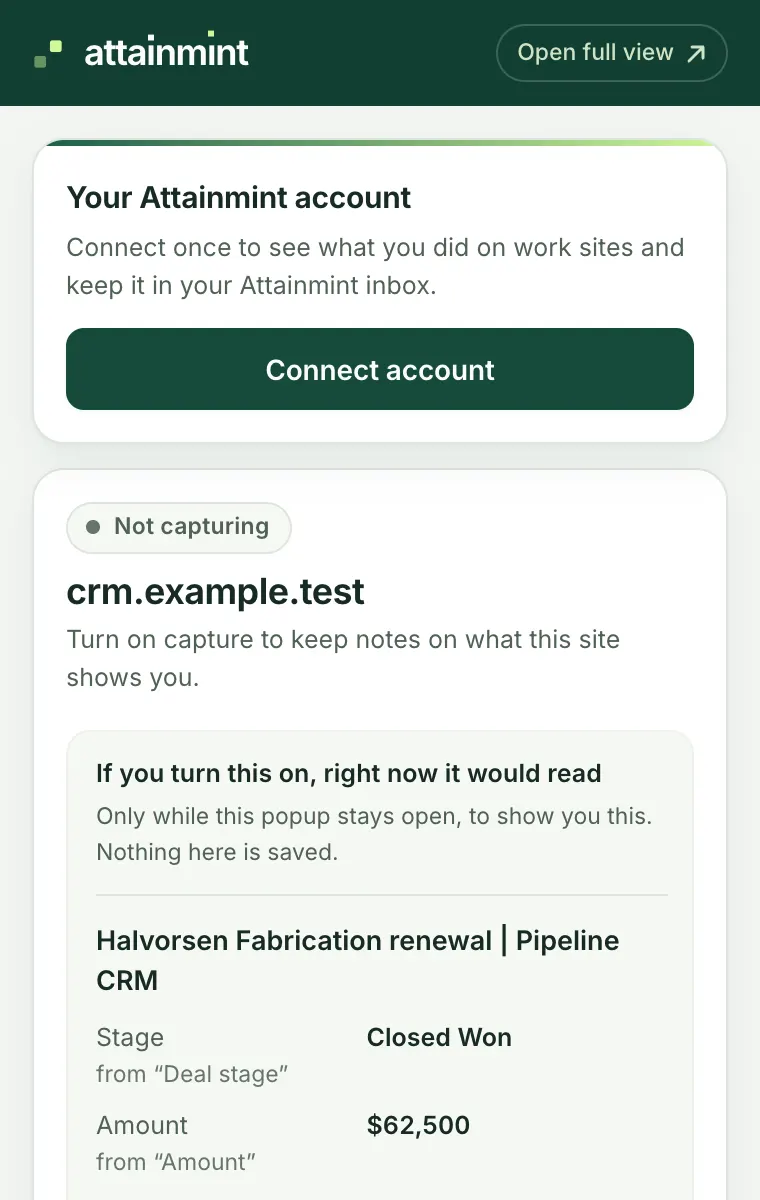
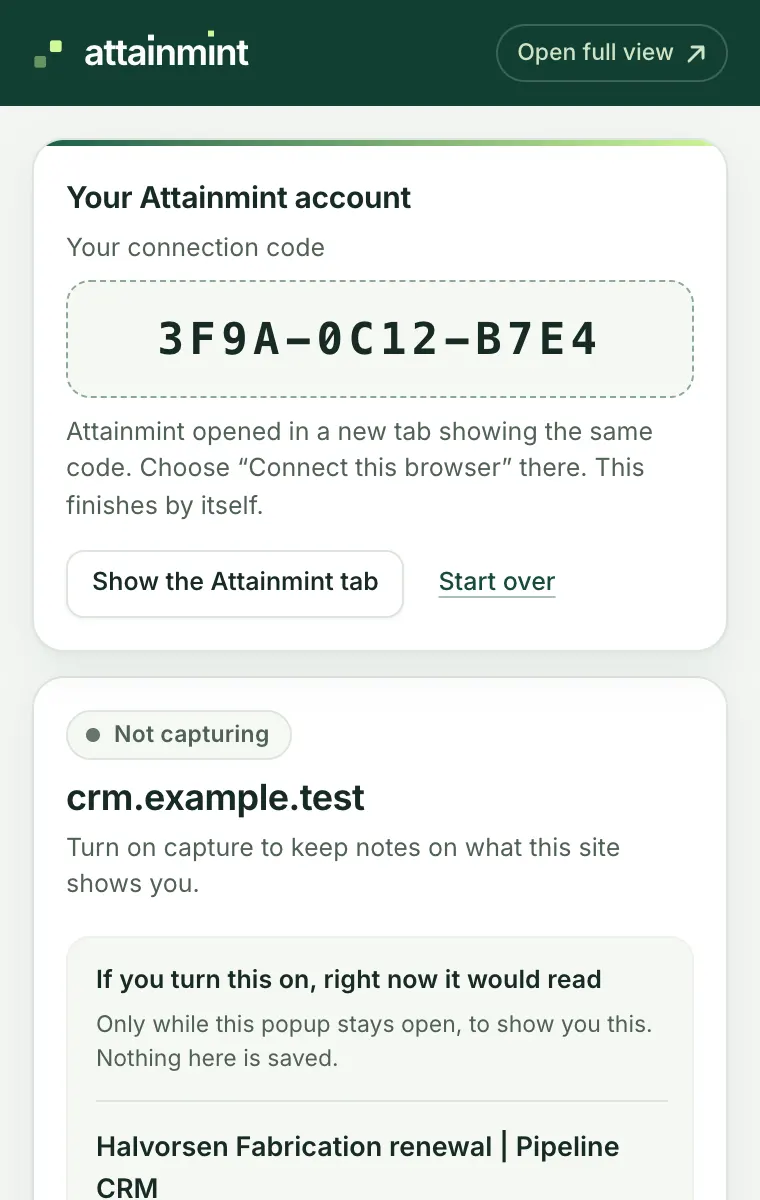
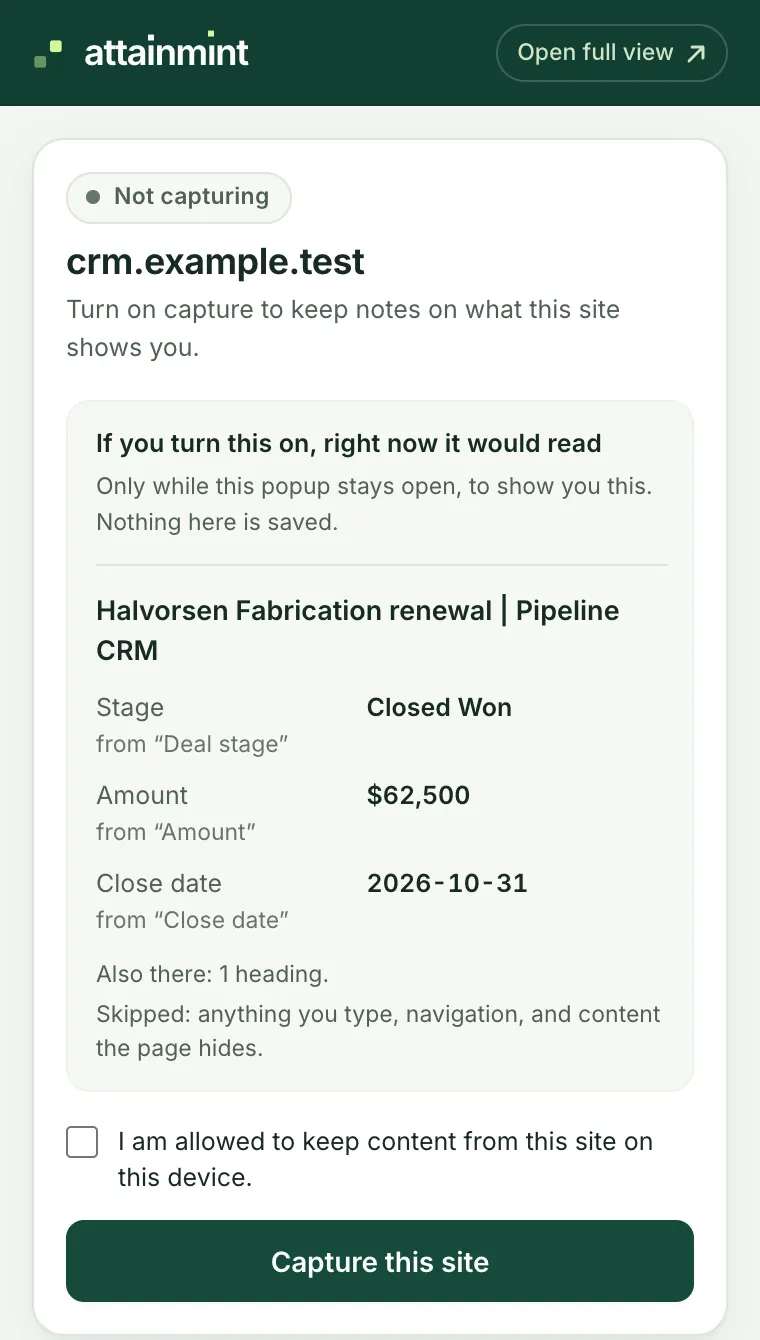
Turn on a work site
Go to a work site, open the extension, confirm you are allowed to capture it and choose Capture this site.
See “What you did”
Work as usual. What you did appears in the extension, and each morning it offers yesterday’s counts for your record.
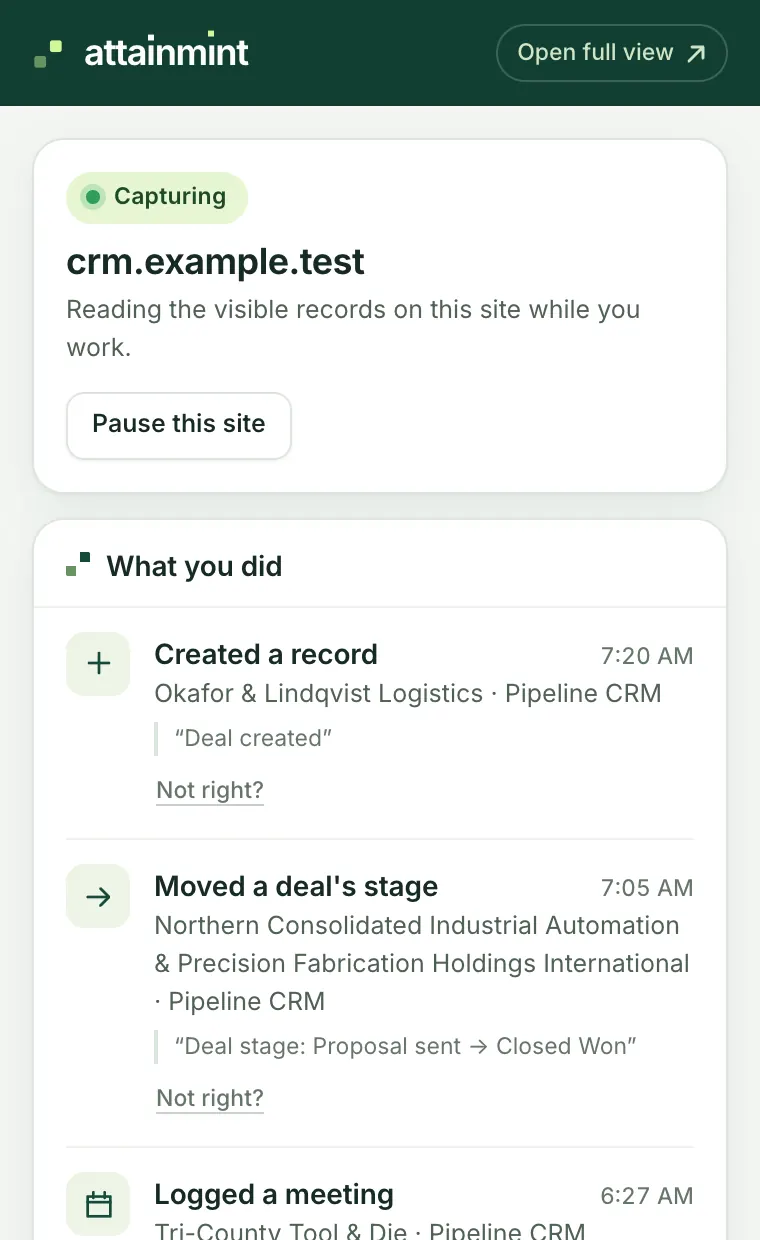
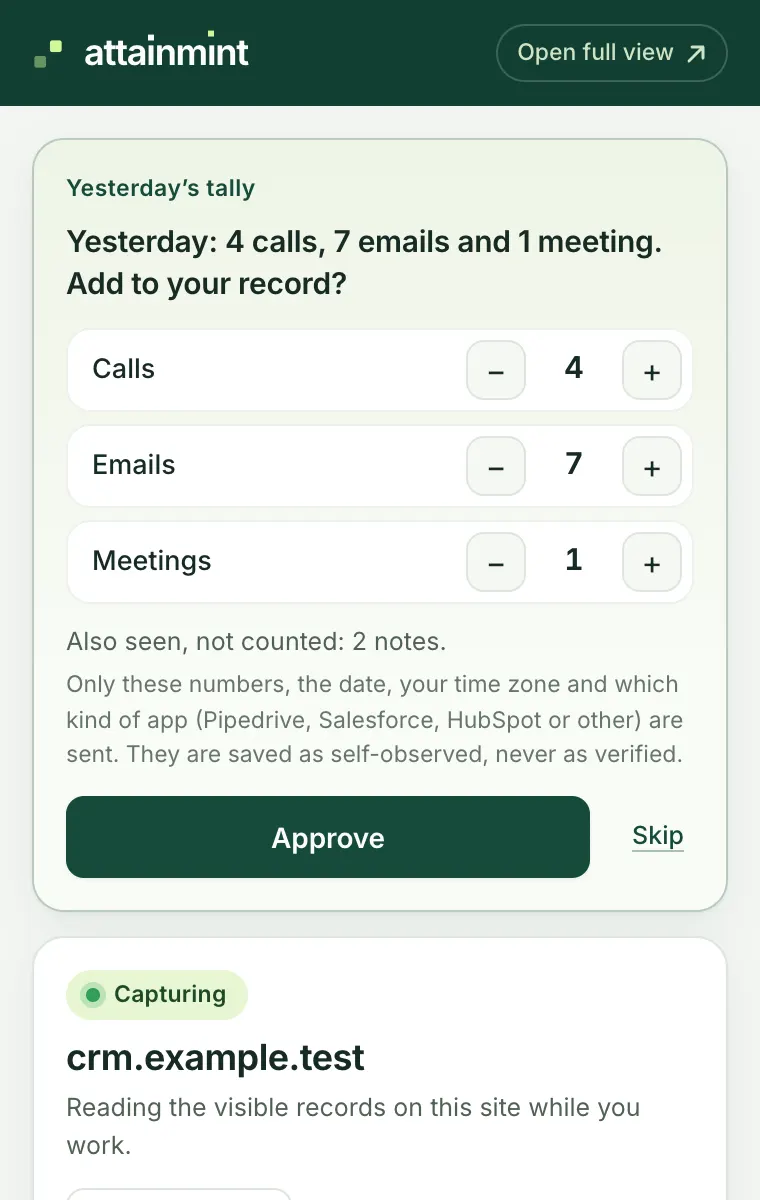
Screens from the extension, shown with example data.
You control what leaves your browser
Capture is local by default. The extension keeps up to 40 captured pages for 24 hours while Chrome runs; older captured pages may be removed sooner to bound storage.
When cloud sync is enabled, a separate persistent queue holds up to 500 captured pages / 4 MB. Only acknowledged items leave the queue. Failed uploads retry with backoff. A full queue pauses capture instead of discarding pending items. Items older than seven days must be exported and cleared before syncing resumes.
Pausing a site stops new capture; already queued captured pages can still sync. Pause cloud sync to stop uploads, or disconnect to revoke the browser and clear its queue. You can also revoke a browser from the Capture inbox.
Cloud inbox items remain accessible for 30 days, then a scheduled job removes them. Evidence deliberately attached to an achievement is retained independently. The current inbox limit is 1,000 items per person.
Early-access limits
The extension is not yet Chrome Web Store reviewed or validated in live CRM accounts. Coverage depends on the page exposing readable elements. Embedded frames, closed shadow roots, canvas content and some layouts may be missed. Detected frames are reported as omitted; the extension does not silently request their origins. Screenshots and general-purpose visual extraction are not included.
Basic redaction is not a guarantee that customer or company information has been removed. Enable only appropriate sites and retain only information you are authorized to keep.